
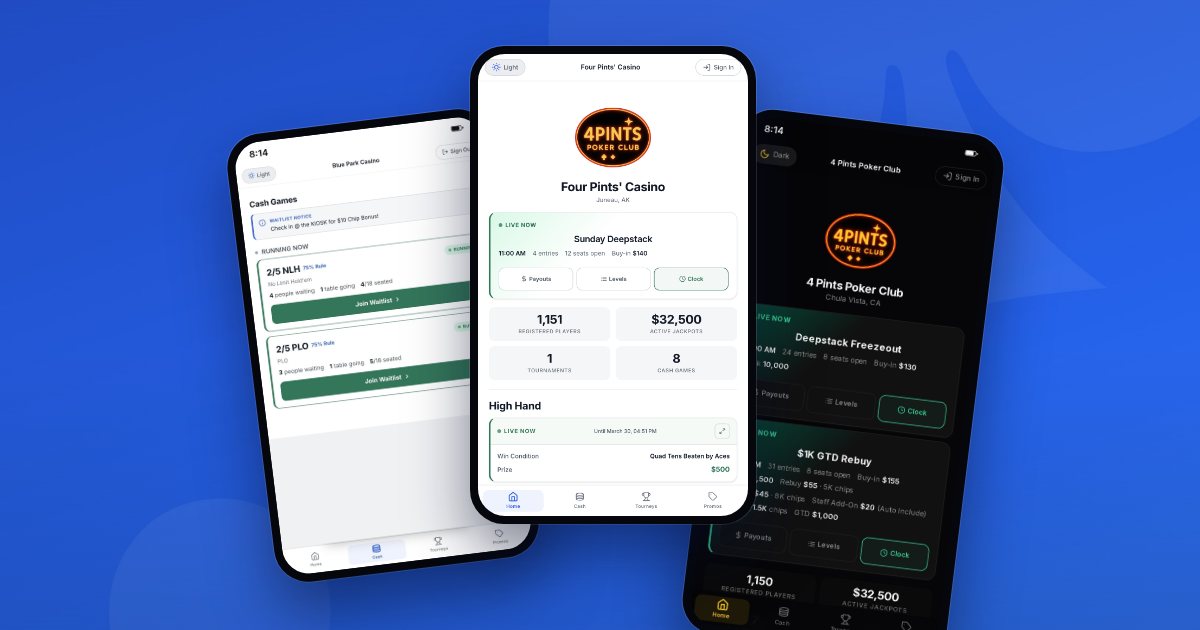
The Player App is a Progressive Web App (PWA), which means you can install it directly from your browser—no app store required. Once installed, it works just like a native app with its own icon on your home screen. It's one of several features that make CardOpz a complete cardroom management platform.
The installation process varies slightly depending on your device and browser. Here's exactly what to do.
iPhone & iPad
iOS Installation
Safari required—other browsers won't work
You must use Safari to install the app on iPhone or iPad. Chrome, Firefox, and other browsers on iOS cannot install PWAs—this is an Apple limitation.
-
Open Safari and go to your poker room's Player App URL Example: bluepark.cardopz.com
-
Tap the Share button at the bottom of the screen It's the square with an arrow pointing up
-
Scroll down and tap "Add to Home Screen"
-
Edit the name if you want, then tap "Add" in the top right
-
Done! The app icon now appears on your home screen
Android
Android Installation
Chrome or Samsung Internet
Android makes this easy—most browsers will automatically prompt you to install the app when you visit.
Using Chrome (Recommended)
-
Open Chrome and go to your poker room's Player App URL
-
Look for the "Install" banner that appears at the bottom of the screen It should appear automatically after a few seconds
-
Tap "Install" and you're done
If no banner appears:
-
Tap the three-dot menu (⋮) in the top right corner
-
Tap "Install app" or "Add to Home screen"
-
Confirm by tapping "Install"
Using Samsung Internet
-
Tap the menu icon (three horizontal lines) at the bottom
-
Tap "Add page to" → "Home screen"
-
Tap "Add" to confirm
Desktop (Windows, Mac, Linux)
Desktop Installation
Chrome, Edge, or Safari
Chrome or Edge
-
Open Chrome or Edge and go to your poker room's Player App URL
-
Look for the install icon in the address bar It looks like a monitor with a download arrow, or a "+" icon
-
Click the icon and select "Install"
-
The app opens in its own window and gets added to your Start Menu (Windows) or Applications folder (Mac)
Alternative method:
-
Click the three-dot menu in the top right corner
-
Look for "Install [App Name]" or go to "More tools" → "Create shortcut"
-
Check "Open as window" if prompted, then click "Create"
Safari (Mac only)
-
Open Safari and go to the Player App URL
-
Click File in the menu bar
-
Select "Add to Dock" Requires macOS Sonoma (14) or later
Frequently Asked Questions
How do I update the app?
The app updates automatically whenever you're connected to the internet. There's nothing you need to do—just use it normally and you'll always have the latest version.
Can I get notifications?
Yes! After installing, you may be prompted to enable notifications. This is optional but recommended—you'll get alerts when your seat is ready, tournament updates, and more.
How do I uninstall the app?
Remove it like any other app on your device. On mobile, long-press the icon and delete. On desktop, right-click and uninstall, or drag to Trash.
Why won't it install on my iPhone using Chrome?
Apple requires you to use Safari to install PWAs on iOS. This is an Apple restriction, not something we control. Open the same URL in Safari and follow the steps above.
Do I need to create an account first?
No—you can install the app immediately and browse the waitlist, tournament schedule, and promotions. Create an account when you're ready to sign up for games.
Once installed, you can check the live waitlist, view your position, browse tournaments, and manage your account—all from your home screen. Want to see all the ways CardOpz connects players with your room? Book a demo to see it in action.